 Novrix Sports
Sharing and money
The live board and TV screen
Let players follow the courts on their phones, show the queue on a TV, and post announcements.
The live board is a web page your players open on their own phones. It shows the courts, who’s next, their wait and the results, and lets them ask for a rest or finish for the day. It needs an internet connection; the rest of the app works offline.
Step 1: Start the board
- On the Queue tab, tap the live board button next to the Courts / Players / Results tabs (or Live board & TV at the bottom of Courts).
- Tap Start live board.
- Players scan the QR code with their phone camera, or you tap Share link and send it to the group chat.
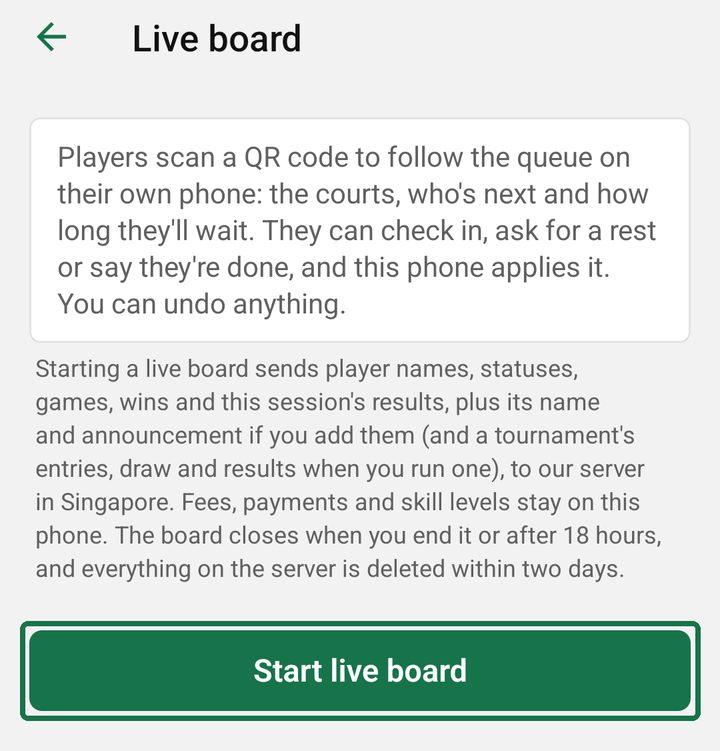
Keep the app open while the session runs: players’ requests arrive on your phone. Live boards are off during a practice session.
Step 2: Players find their name
- On the board, a player taps Find me and picks their name.
- Their own card then shows where they are (“#3 in line”, “You’re up next”, “On Court 2”), who they play with and against, and roughly when they start.
Picked the wrong name? In the app, under Names picked, tap Free next to it and they can pick again.
What players can ask for
- I’m here: checks them in, if you added them as not here yet.
- Take a rest, and I’m back.
- Done for today: they leave the line and won’t be picked again.
- While playing: Leave after this game, or Stay after this game.
Requests apply on your phone by themselves, and each shows in the Requests list on the Live board screen. Most also show in the undo bar for a few seconds, so you can undo them. After that, change it back from the player’s ••• menu.
Announcements
On the Live board screen, type a line under Announcement, like “Court 3 is closed” or “Fees ₱100 today”. It shows at the top of the board and across the TV until you tap Clear announcement.
Show it on a TV
- On the Live board screen, find Show on a TV.
- Tap Send TV link and open the link on a smart TV, monitor or laptop at the venue. Preview opens it on your phone first.
The TV shows the courts and who’s up next, then switches to the standings every 20 seconds, with the latest result along the bottom and a QR code so players can join. When a game starts, it shows “You’re up” with both teams for a few seconds. Give the session a Session name on the Live board screen and it shows big on the TV.
Step 3: End the board
Tap End live board at the bottom of the Live board screen. Players’ boards close and the link stops working; your queue stays as it is. Wrapping up the session doesn’t end the board, so end it yourself. If it’s still running, it closes by itself after 18 hours.
What’s shared
Player names, statuses, games and results go to the board. Fees, payments and levels stay on your phone. The privacy policy at novrixsports.com/privacy has the details.