 Novrix Sports
After the session
Planning a session ahead
Set up a queue before the day, get a reminder, and start it when everyone arrives.
Step 1: Plan the queue
- On the Queue tab, tap the calendar button next to the tabs, then Plan a queue. (Or tap Plan ahead on the Players tab.)
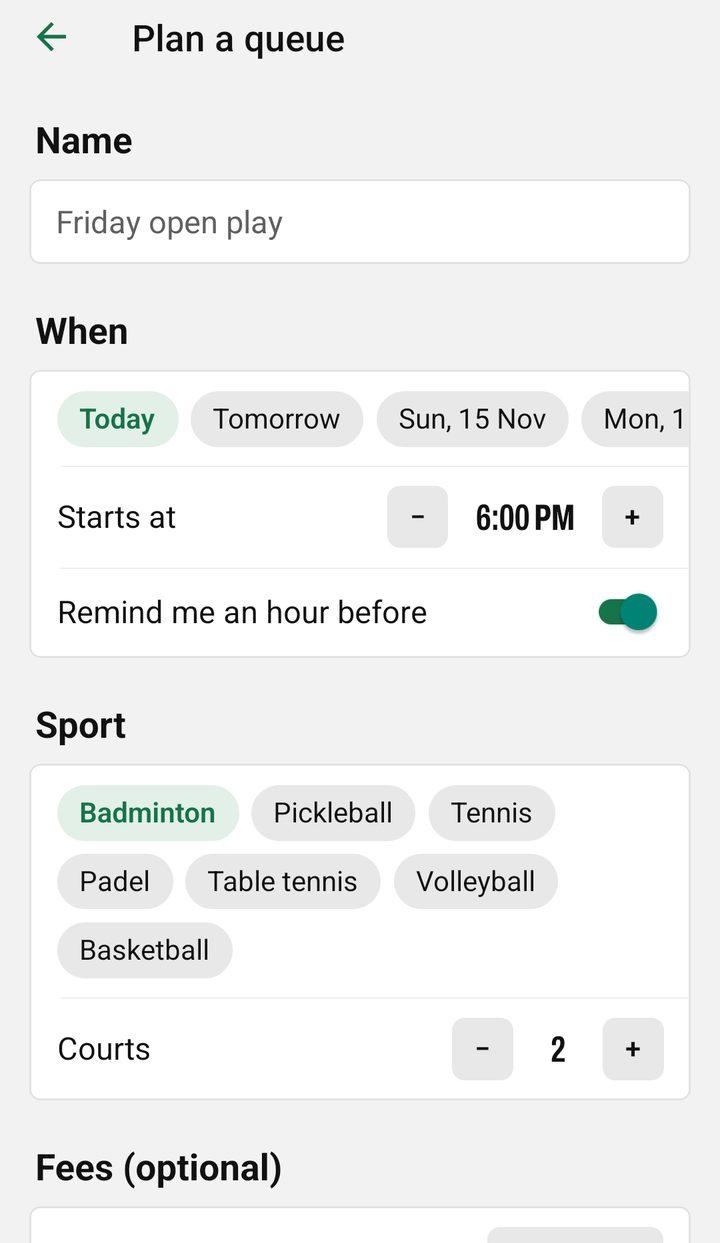
- Fill in the Name, When (up to two weeks ahead), Starts at, the Sport, how many courts, and any fees.
- Under Who’s coming, paste the Reclub list or type names. You can also add people on the day.
- Tap Save.
Step 2: Get a reminder
With Remind me an hour before on, your phone shows a notification an hour before the start. The first time, allow notifications when the phone asks. If you said no, turn notifications on for Novrix Sports in your phone’s settings. The reminder is set on your phone; nothing is sent to us.
Step 3: Start it on the day
- From 3 hours before, the planned queue shows at the top of the Queue tab with a Start button.
- Tap Start, then Start this queue. Everyone on the list starts as Not here yet.
- As people arrive, tap Check in next to their name, or let them tap I’m here on the live board. They join the back of the line.
If a queue is already running and has a result, it’s saved in Past sessions when the new one starts. One with no results yet is cleared, and the app says so before you start. A planned queue never starts by itself.
Change or delete a plan
Tap the calendar button , tap the plan, change it and tap Save, or tap Delete. Plans are kept on your phone and removed a week after their start.
Pasting a list on the day
Not planned? On the Players tab, tap Paste a list and paste a Reclub list, a numbered list, or names one per line or with commas. Lines like the date or courts are left out. Choose Wait for check-in or Add to the line now, then add them.