 Novrix Sports
After the session
Ending a session
Wrap up, share the recap as a picture, export a spreadsheet, and look back at past sessions.
Step 1: Wrap up
- On the Queue tab, open Results and tap Wrap up the session (it shows once a game has been played).
- Tap Wrap up. If games are still on court, the app says so: tap Go to courts to finish them first, or wrap up anyway and they won’t count.
The queue clears for next time, and your regulars stay. The session is kept in Past sessions for 30 days. If a live board is running, end it from the Live board screen too.
Step 2: The recap
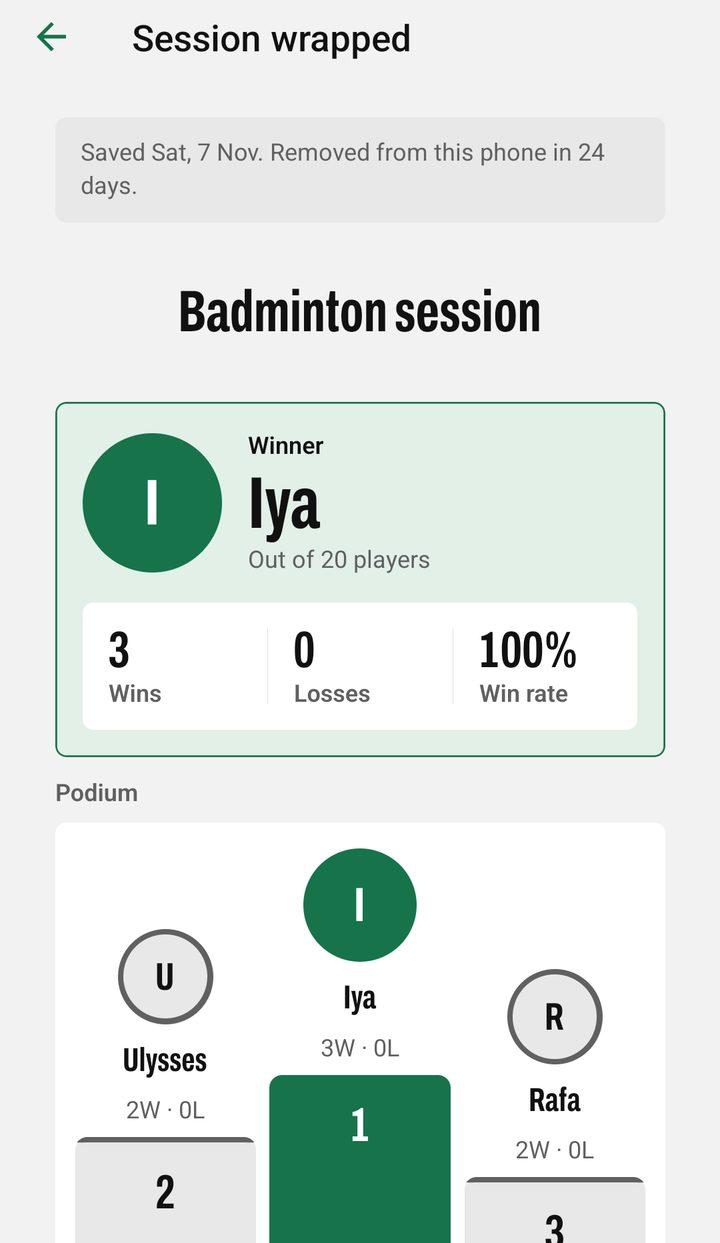
Session wrapped shows who won, the podium, highlights like the longest winning run and the closest game, how long it lasted, the full standings with everyone’s wins, losses and win rate (and who didn’t get a game), and who’s still to pay.
Step 3: Share it
- Share as a picture: a card with the winner, the top places and the session’s numbers, ready for the group chat or Facebook. It doesn’t show money.
- Share as text: the same, as a message.
- Export spreadsheet: a CSV file for the club’s treasurer, with each player’s games, wins and win rate, what they owed and paid (cash and GCash), and every game with its time, court, teams, score and winner. It opens in Excel or Google Sheets.
From the recap you can also Plan the next queue.
Past sessions
Finished sessions stay on your phone for 30 days (up to 50), and in your backups. Open Results → Past sessions and tap one to see its recap again, share it or mark late payers paid. Only payments can be changed on a past session.
This month
Results → This month ranks everyone across the last 30 days of sessions by win rate, then wins (still level, they share the place), with who topped the most sessions. Players are ranked once they’ve played enough games that month. Tap Share the leaderboard to send it to the group chat as text.