 Novrix Sports
Running a session
Your first session
Set up the sport and courts, add players, start games and record who won.
Everything happens on the Queue tab, under Open play. It has three tabs: Courts (what’s on and what’s next), Players (the line) and Results. Want to try it first? Tap Try a practice session for a guided run with sample players; your real queue is kept safe.
Step 1: Set the sport and courts
- Tap the settings button next to the tabs to open Queue settings.
- Choose the Sport and the Format (Singles or Doubles; team sports show sizes like 6 v 6).
- Under Games, set how many Courts you have, from 1 to 8.
The sport and format can’t change while a game is on court. Players, results and money stay when they do.
Step 2: Add the players
- On the Players tab, type a name and tap Add. To add several at once, separate them with commas: Ana, Ben, Carlo.
- Have a list from Reclub or the group chat? Tap Paste a list and paste it.
- Names you’ve used before come back under Regulars: tap one to add them. Hold a name to forget it.
Players join the back of the line in the order you add them.
Step 3: Start a game
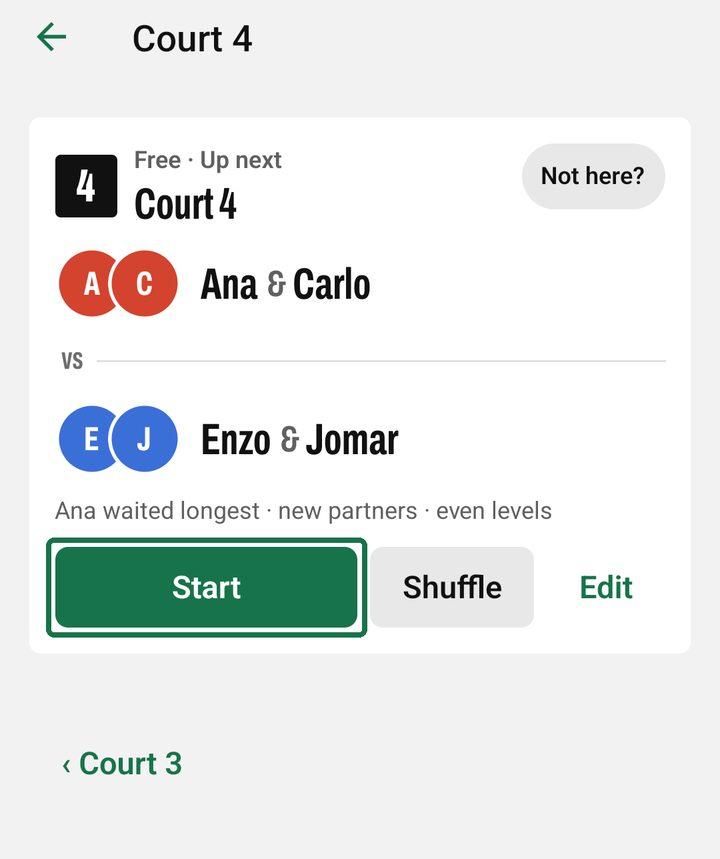
- Go to Courts. Each free court shows the next game: who plays, the teams, and why they were picked (like “Ana waited longest · new partners”).
- Tap Start. Those players leave the line and everyone else moves up.
- Don’t like the teams? Shuffle gives another fair option, and Edit lets you choose the players yourself. With two or more courts free, Fill all free courts starts them all.
Step 4: Record who won
- When the game ends, tap End game on the court.
- Tap the team that won. Adding the score is optional.
- Tap the green button that says who won. Everyone from that game goes to the back of the line, and the court shows its next game.
See also: Results and keeping score →
Undo anything
After each change, a bar with Undo shows for a few seconds. The undo button on the This session card at the top of Courts goes back further, step by step.
Next games and the wait
The Up next tab is the plan. Each next game is a card: tap a player, then another, to swap them, in any game or across the teams. Even up the teams fixes an uneven game, and ••• starts it, plays it first, locks it in or opens Edit. Later shows the games after, players on court included. Share as text posts the plan in your group chat.
When the session ends
Open Results and tap Wrap up the session.